Export and Schedule Dashboards
What's New
Download / Schedule Dashboard
We've introduced Download and Scheduling of Dashboard as PDF experience for BI dashboards, making it easier to generate professional, presentation-ready reports directly from your dashboards.
What's new:
- Enhanced PDF rendering for improved visual quality and consistency.
- Improved layout handling to better support different dashboard configurations and widget arrangements.
- Refined formatting to ensure charts, tables, and dashboard components are exported more accurately.
- Updated preview experience, allowing users to review the output before generating the PDF.
- More reliable PDF generation for a smoother export experience across supported dashboards.
How to export a dashboard as PDF:
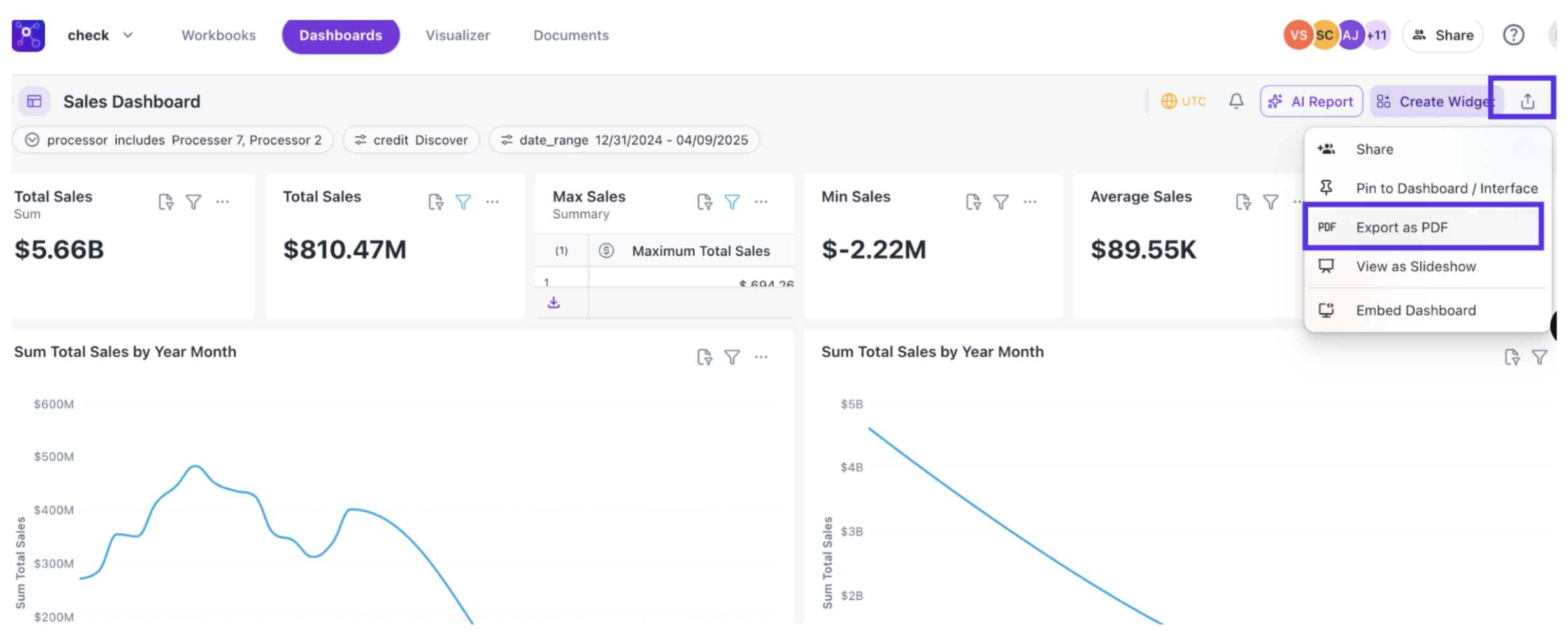
- Open the desired Dashboard.
- Click Share in the top-right corner.
- Select Export as PDF.
- Configure the export options and review the preview.
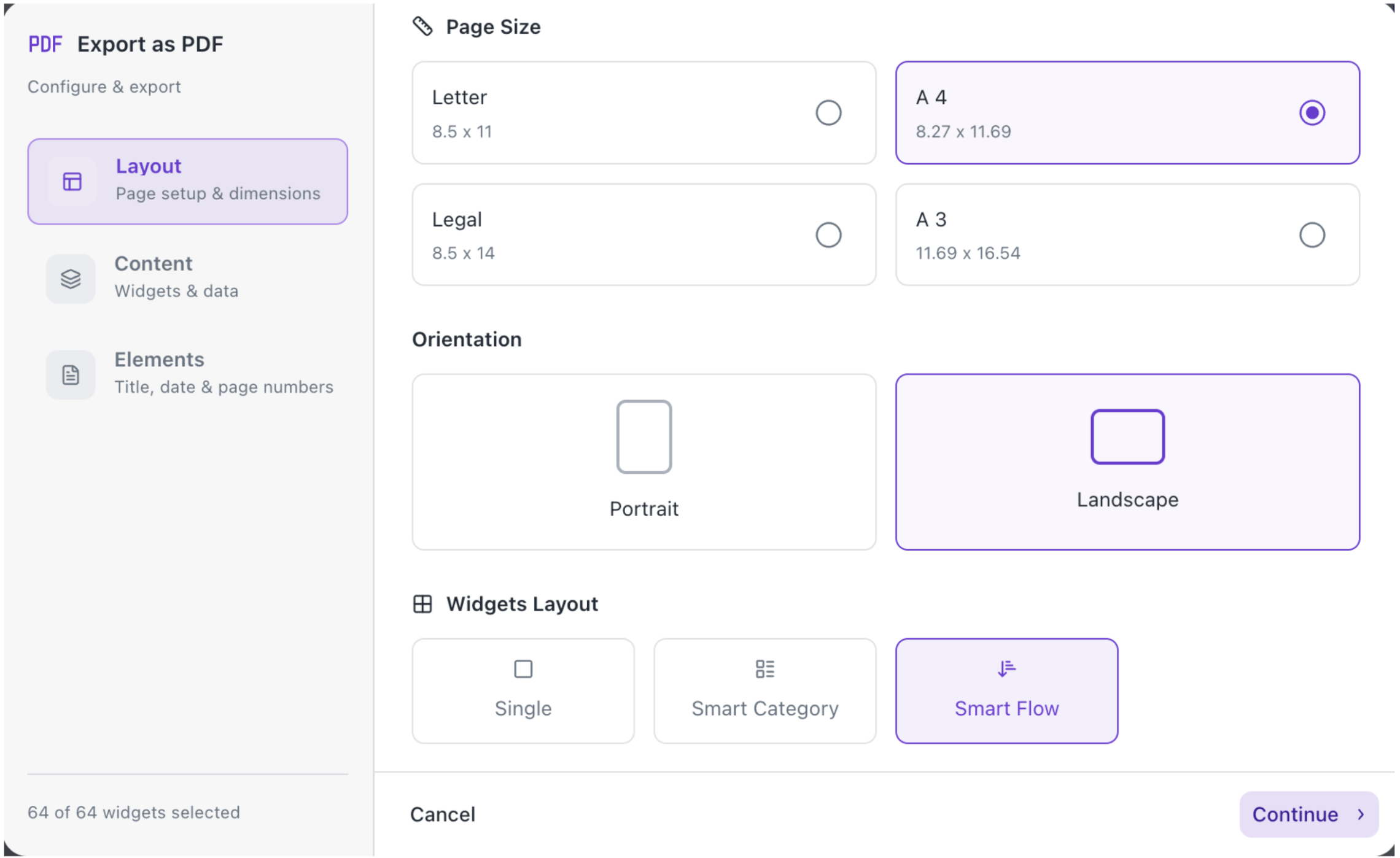
- Single – Prints one widget per page, in the same order as the dashboard.
- Smart Category – Prints KPIs first, followed by Charts, then other widgets; Original dashboard order is not preserved.
- Smart Flow – No predefined format; widgets are arranged dynamically, e.g., one chart + two KPIs, two KPIs, two charts, or one chart per page.
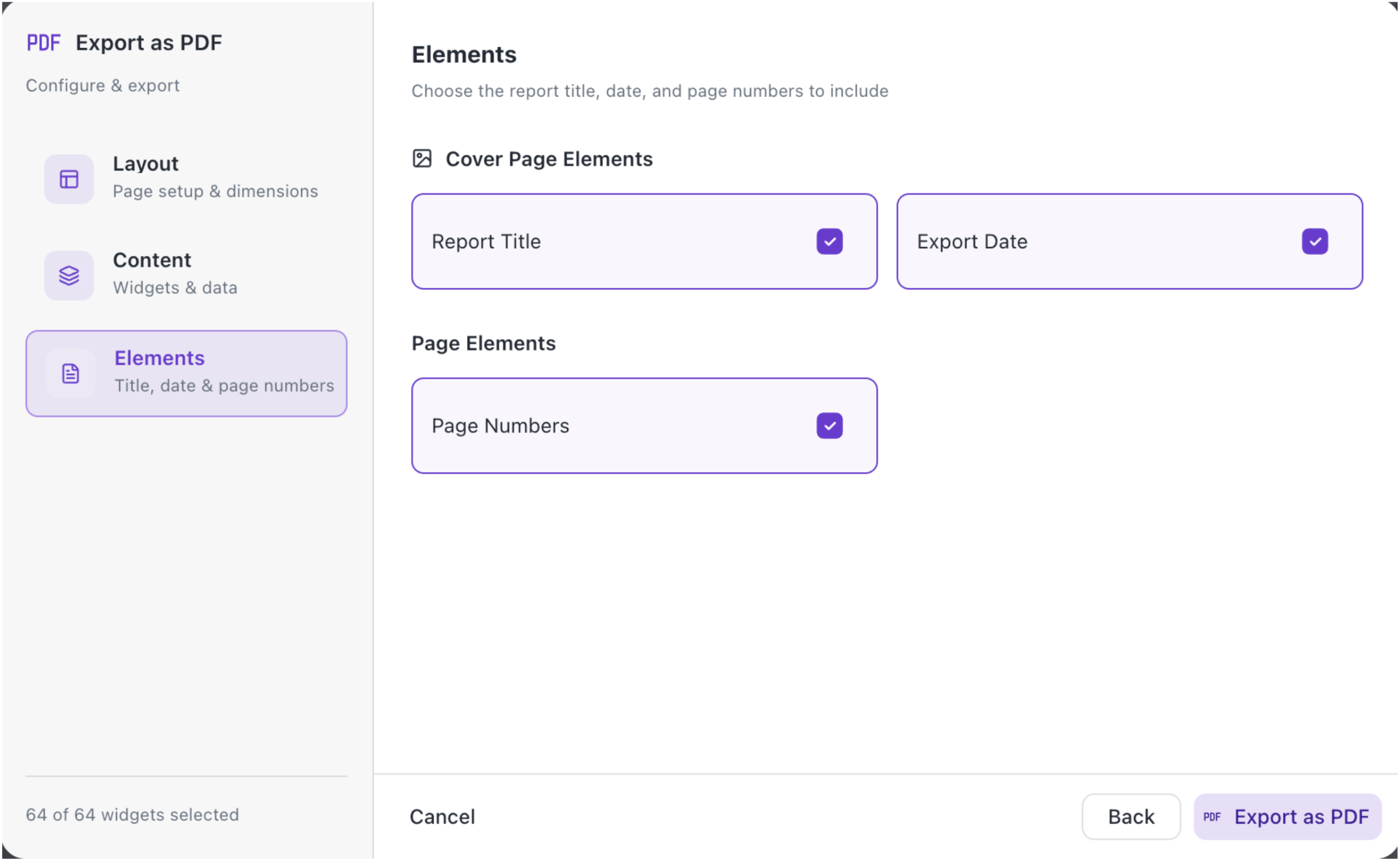
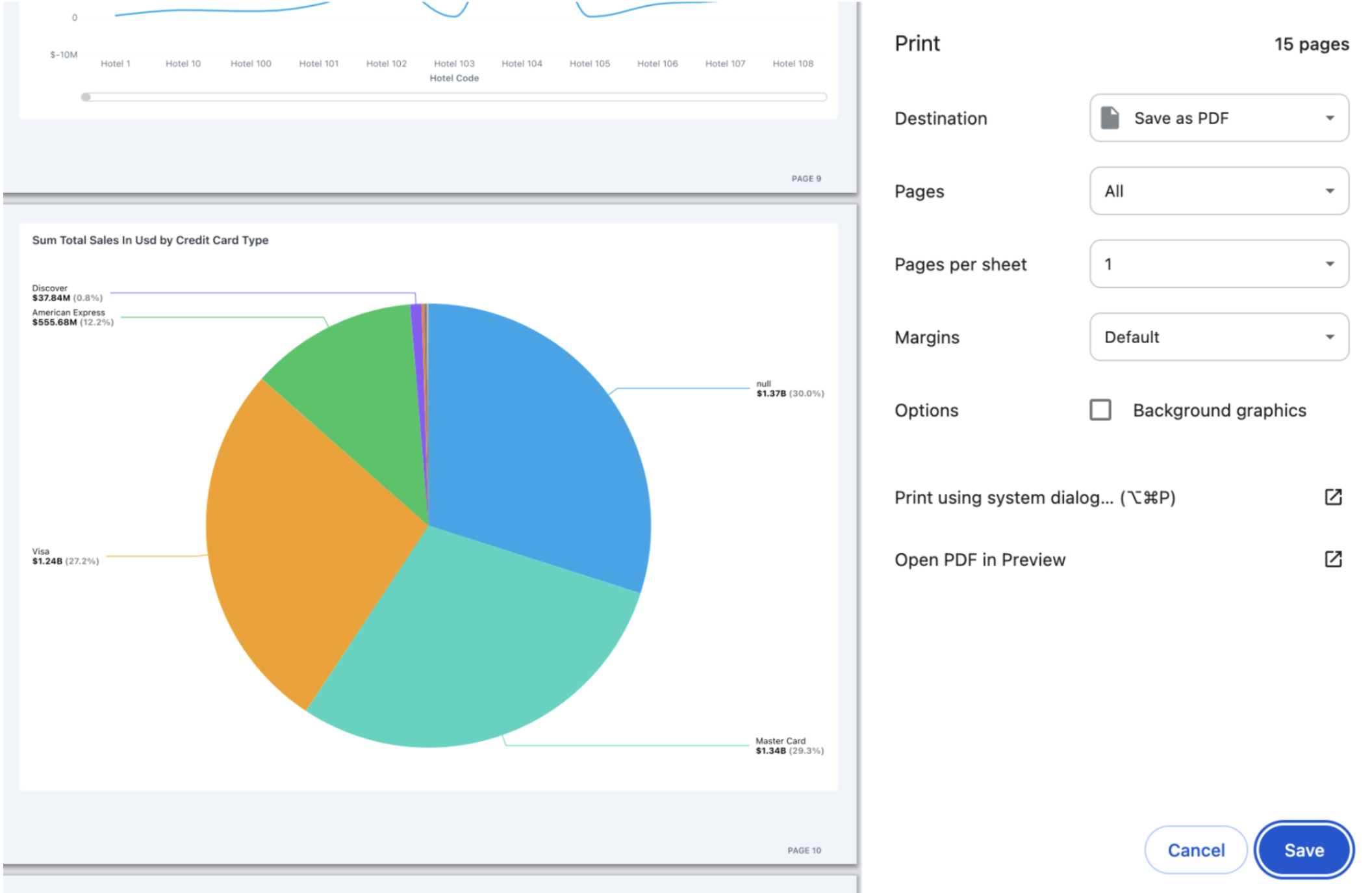
- Click Save as PDF to generate and download the document.
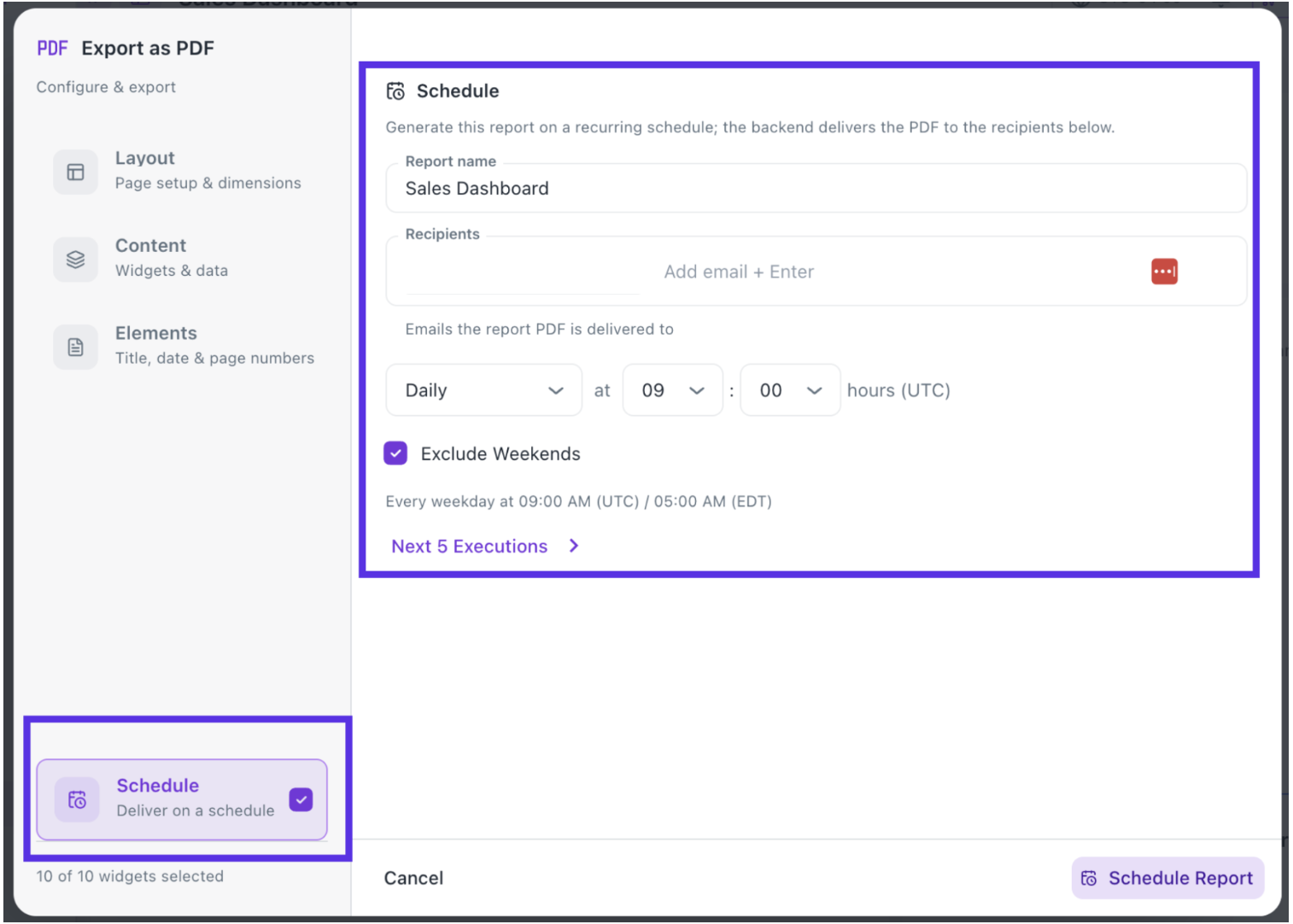
- Scheduling the PDF Dashboards: Once you have configured all the settings, you can now setup the Schedule dashboard via email.
Was this helpful?